
Free photo-to-coloring-page tools make it surprisingly easy to turn a favorite picture into printable line art. A parent can make a personalized activity, a teacher can prepare a quiet classroom page, and an adult can create a simple mindfulness project without buying design software.
In this guide, you will learn how to choose the right photo, convert it with EasyColor's photo to coloring page tool, clean up the result, and save it in a format that prints well. You do not need a design degree. You need a clear photo, a few smart choices, and a page that is actually enjoyable to color.
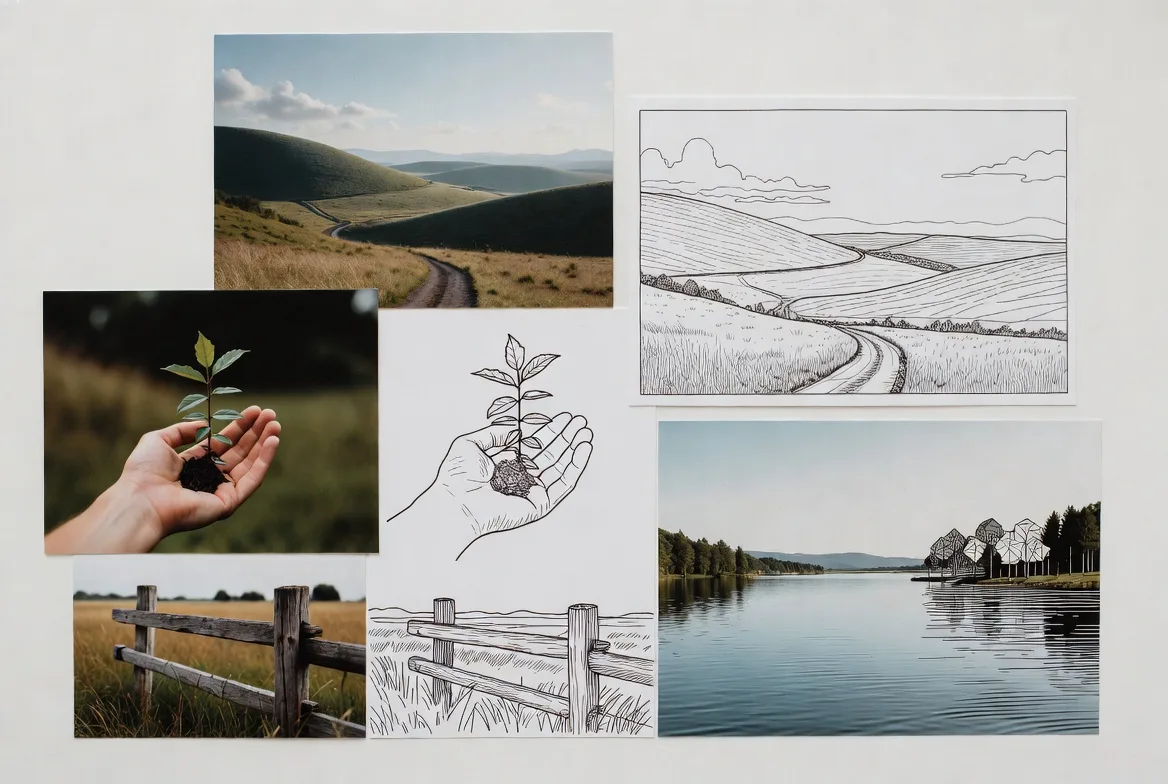
Key takeaways
- A bright, clear photo with a simple background gives the best result.
- Free browser-based converters can turn photos into printable line art quickly.
- Simplifying details often makes the page better, especially for kids.
- PNG works well for single sharp line-art images, while PDF is better for printing packets.
- Always print one sample before making many copies.
- A repeatable workflow helps you create custom coloring pages faster over time.
Choose the right photo
A good result starts with a good source image. Free photo-to-coloring-page tools can detect edges and simplify details, but they cannot fully fix a dark, blurry, or cluttered photo.
Look for:
- bright, even lighting
- one main subject
- simple background
- sharp focus
- strong contrast
- a subject that fills the frame
Photos of pets, portraits, toys, flowers, simple buildings, and objects usually convert well. Busy party scenes, dim restaurant photos, and images with lots of tiny background detail usually need more cleanup.
If you want a faster start, upload two or three candidate photos to EasyColor and compare the results. The best source image is not always the prettiest photo. It is the one that becomes the clearest coloring page.
Use the squint test
Before uploading, try this quick test: squint at the photo. If you can still recognize the subject immediately, it has a better chance of converting cleanly.
If the image becomes confusing when you squint, the coloring page may also become confusing. Choose a simpler photo or crop around the main subject first.
Turn your photo into a coloring page for free
Most free coloring-page-from-photo workflows happen in the browser. With EasyColor's photo to coloring page converter, the process is straightforward:
- Open the photo to coloring page tool.
- Upload a JPG or PNG.
- Choose a style that matches your goal.
- Generate the coloring page.
- Preview the line art.
- Download or save the result.
If the first result is too busy, try a simpler style or use a photo with a cleaner background. If the result is too plain, try a version that keeps a bit more detail.
This is useful for:
- pet coloring pages
- family activities
- classroom worksheets
- birthday party pages
- simple gifts
- memory books
- printable bundles
For themed pages that do not need to come from a photo, use the AI coloring page generator instead.
Adjust the line art so it is easy to color
Your first conversion may not be the final version. A few small adjustments can make the page much better.
Focus on:
- thicker outlines
- fewer tiny details
- cleaner background
- stronger contrast
- open coloring areas
- recognizable main shapes
For younger kids, simplify more than you think you need to. Hair texture, clothing folds, grass, furniture, and busy backgrounds can turn into too many small lines. For older kids and adults, some extra detail can be enjoyable, but the page should still print cleanly.
A good rule: if the subject is not obvious from arm's length, simplify it one more step.
Remove or reduce the background
Backgrounds are one of the biggest reasons photo coloring pages look messy. A photo might look beautiful because of its setting, but a converter may turn every leaf, shadow, and chair leg into extra lines.
Use a simple background when possible. If the background is distracting, choose a style that fades it, removes it, or focuses more strongly on the main subject.
This matters especially for:
- classroom pages
- pages for younger children
- pet portraits
- party handouts
- pages you plan to print many times
If you need a fully custom scene instead of a photo background, generate a fresh page with text to coloring page.
Save in the best format
The file format affects print quality. A good coloring page can look weak if it is saved at low resolution or printed from a compressed preview.
Use these quick rules:
| Format | Best for |
|---|---|
| PNG | single pages with sharp line art |
| printing, classroom packets, multi-page collections | |
| JPG | previews or casual sharing, not ideal for crisp line art |
For printing, choose a high-resolution download when available. Print on US Letter or A4, and avoid scaling settings that crop the page.
Before printing 30 copies, print one sample. Thin gray lines may look fine on screen but disappear on paper.
Use your free photo coloring page
Once you have one clean page, there are many ways to use it:
- make a pet portrait coloring page
- create a family keepsake
- prepare a classroom calm-down sheet
- make a birthday activity
- create a holiday page from a family photo
- build a custom mini coloring book
- add it to a printable activity packet
If you are building a full book, read our guide on creating your own coloring book. If you want a photo-based book specifically, see how to turn photos into a custom coloring book.
You can also browse free printable coloring pages for quick ready-made sheets or inspiration before making your own.
Build a repeatable workflow
After you create one successful page, save the process so you can repeat it.
A simple workflow:
- Pick 3 clear photos.
- Upload the strongest one.
- Test 2 style options.
- Choose the cleanest result.
- Print one sample.
- Save the final PNG or PDF.
- Store it in a folder with the original photo.
For recurring projects, create folders such as:
- Original Photos
- Converted Pages
- Print-Ready PDFs
- Classroom Packets
- Gift Pages
This makes it easier to build larger sets later.
Common mistakes to avoid
Avoid:
- using dark photos
- choosing images with too many subjects
- keeping a busy background
- printing without a test copy
- saving only a low-resolution preview
- using copyrighted photos for public or commercial projects
- expecting every photo to convert perfectly
If a photo does not work, do not fight it forever. Try a cleaner photo, crop around the subject, or create a similar scene with the AI coloring page generator.
Example prompts for photo-inspired pages
Sometimes you want the feeling of a photo but not an exact conversion. In that case, use a prompt.
Try:
- "cute golden retriever sitting in a garden, printable coloring page, bold clean outlines, white background"
- "family picnic in a park, simple black-and-white coloring page, large open spaces, no shading"
- "birthday cake with balloons and party hats, clean coloring book line art for kids"
- "cozy house with flowers in the yard, printable line art, simple background"
Prompt-based pages are useful when the original photo is private, too blurry, or too crowded.
FAQ
Can I turn a photo into a coloring page for free?
Yes. You can use a browser-based tool like EasyColor photo to coloring page to convert a photo into printable line art.
What kind of photo works best?
Choose a bright, sharp image with one main subject and a simple background. Pets, portraits, toys, flowers, and simple objects often work well.
Why does my coloring page look too busy?
The photo may have too much background detail, texture, or shadow. Try simplifying the style, cropping closer to the subject, or choosing a cleaner image.
Should I download PNG or PDF?
Use PNG for a single sharp image. Use PDF when you want easier printing or a multi-page packet.
Can I make a whole coloring book from photo pages?
Yes. Start with a clear theme, convert your best photos, print-test the pages, and assemble them into a PDF. For the full process, read how to turn photos into a custom coloring book.